4.7/5 rating on G2 and 4.8/5 Capterra
Native Agentic AI

Have Complete Control of your data with transparent Access Control. Keep your data safe by defining which users in your organization have access to specific data and fields, and control which information they can view or what actions they can take.



T&C apply*
Artistic Impression


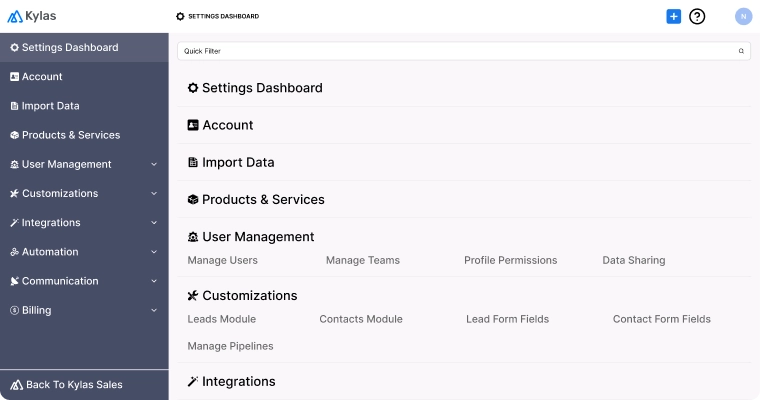
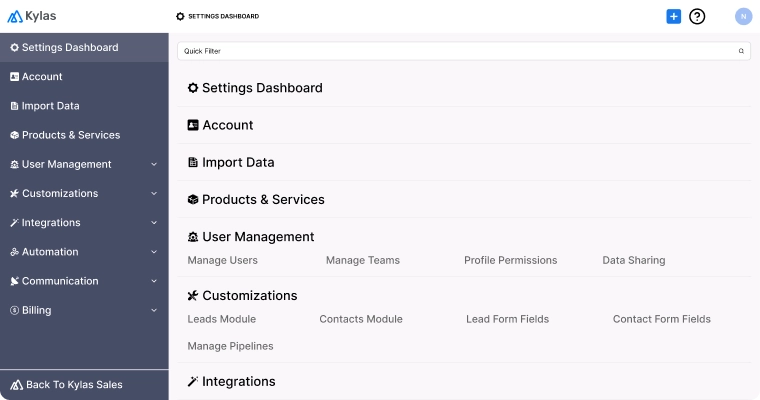
Managing CRM users is incredibly easy with Kylas. You can add users easily, deactivate accounts of members who are no longer part of
the team or even delete their access altogether without breaking a sweat.
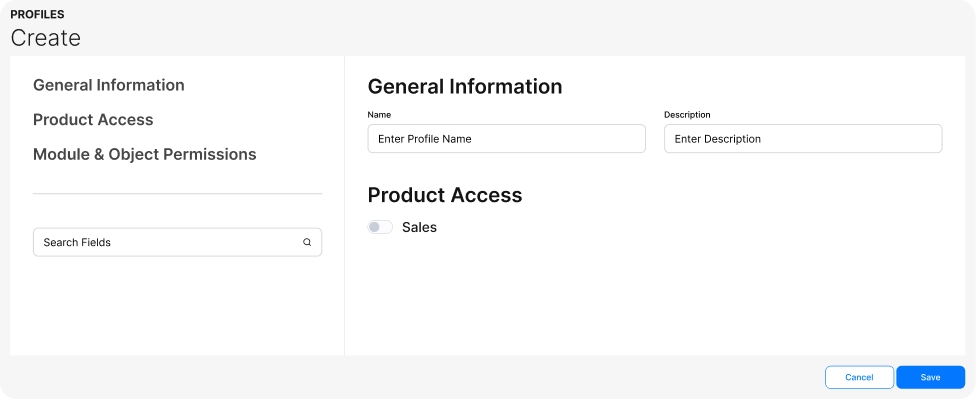
Create profiles and set permissions in line with your organisation’s processes and structures. Regulate different levels of access for CRM
users- what actions a user can or cannot perform in Kylas, and establish which users can make account level changes- adding users and
creating custom data fields
Configure sharing rules. Make fields accessible, read-only or editable as and when needed. Use them to set up
access permissions for CRM tools like Bulk Import, Export, etc.
Most organizations have multiple teams working on the CRM - based on the function (for example- pre-sales, direct sales, marketing
etc.) or the territory. Kylas helps admins create teams and assign users to those teams.
Have Questions? We’re here to help.
Anyone who manages records- either their own or shared by other users is known as a user in Kylas.
User with Manage Users permissions - adding and deleting users, modifying their details and roles, as well as giving and removing their accesses.
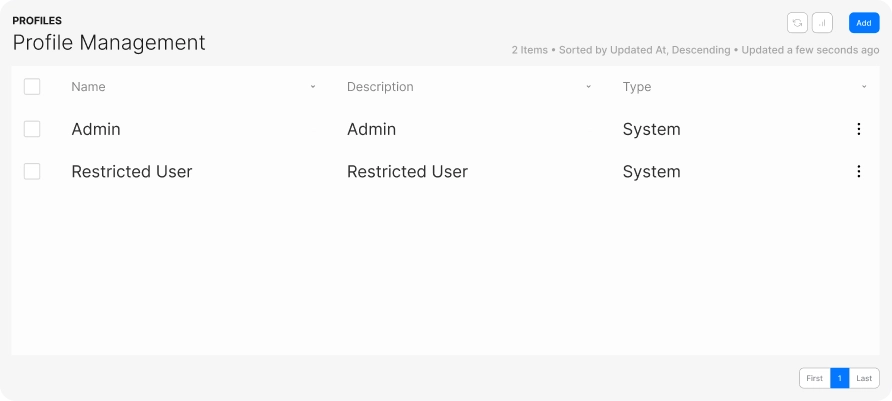
User Roles or profiles are user-types with predefined set of permissions over the product.
A new user added to the system will be assigned a profile. The new user will have permissions and access to all the forms available to that specific profile.
It is mandatory to assign a profile to the newly created user in Kylas CRM. There is no provision to independently set the permissions to a specific user in the Kylas CRM.
Team is an entity in the the CRM under which a set of users are grouped. All the users in a team gets access to the tasks, leads, deals etc. shared with the team. Creation of teams makes it easy for the sales executives to work collaboratively on leads, deals etc.
This type of access gives the user permission to perform specified actions on the entity records owned by the user or shared with the user.
For example, a user with permission to Update Leads can update only the leads created by him or which are shared/reassigned to him.
Administrative Access
This type of access gives the user permissions to perform the specified action on all the entity records under the module on which the permission is granted. For example, a user with permission to Read all Leads can access/read any leads available/created in the system.
Special Access
Special access is applicable only in the following modules – Lead, Contact, Company and Deal. This access gives the user privileges to add tasks/notes specific to an entity like a lead, contact, deal etc.